
After your domain becomes Active in WebOps, you can manage DNS records directly from your dashboard.
This guide explains how to add and manage DNS records in WebOps.
Before You Start #
Before managing DNS records, make sure:
- the domain status is Active
- the domain is using WebOps nameservers
Domains using external nameservers cannot use WebOps DNS management.
Step 1: Open DNS Management #
Log in to your WebOps dashboard:
app.thewebops.com
From the left sidebar:
- Click Domains to open the Domains Portfolio page.
- Locate the domain you want to manage and click the three dots menu next to the domain.
- Then click: Manage DNS
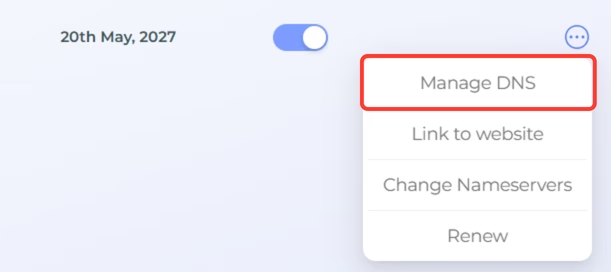
You will be redirected to the DNS management page for the selected domain.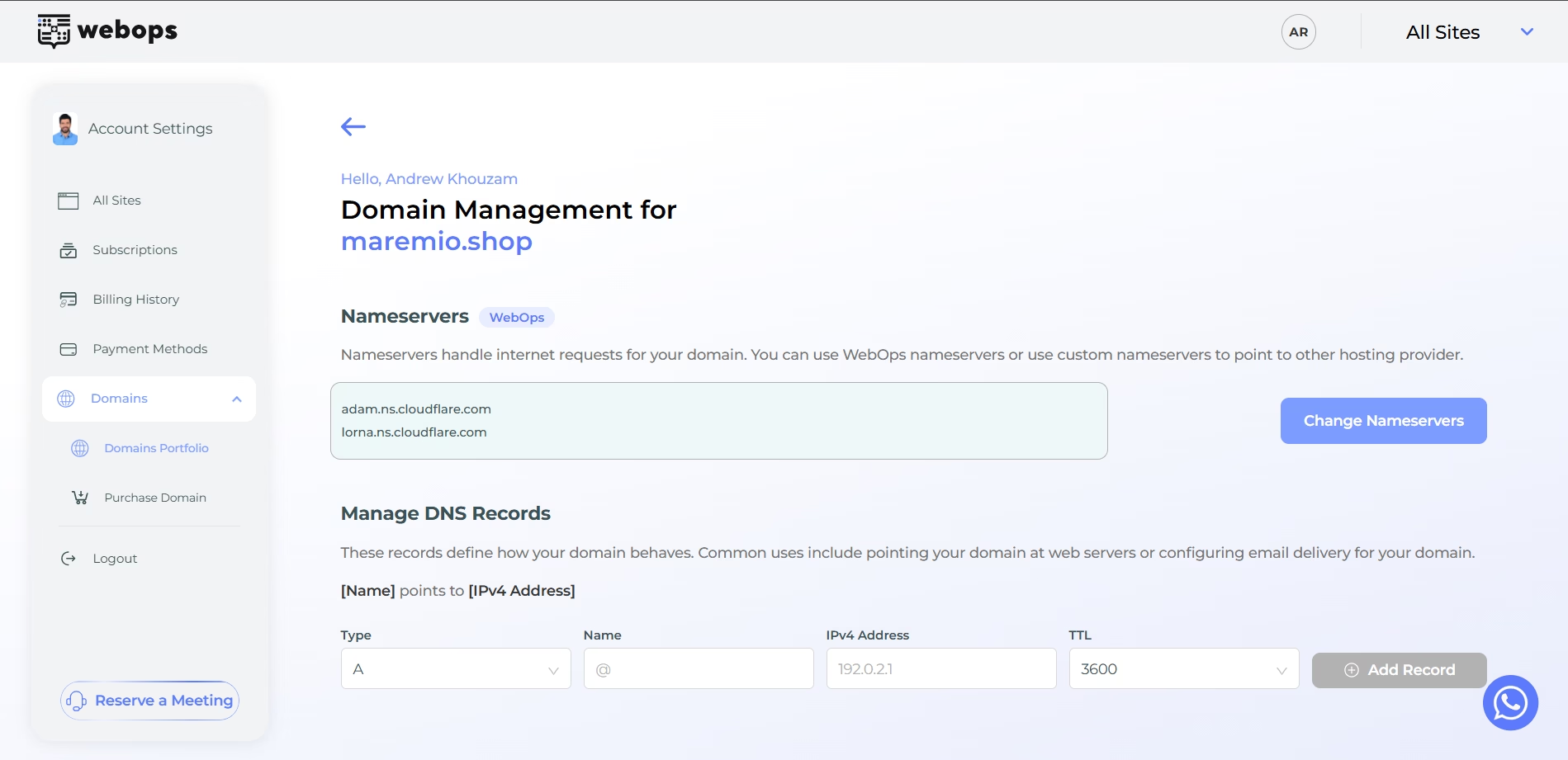
Step 2: Add a DNS Record #
Inside the DNS management page:
- select the DNS record type
- enter the required values
- click Add Record
WebOps supports multiple DNS record types.
A Record #
An A record points your domain to an IPv4 address.
| Name | IPv4 Address | TTL |
|---|---|---|
| @ | 192.0.2.1 | 3600 |

AAAA Record #
An AAAA record points your domain to an IPv6 address.
| Name | IPv6 Address | TTL |
|---|---|---|
| @ | db8::12001 | 3600 |

CNAME Record #
A CNAME record points one domain or subdomain to another domain.
| Name | Target | TTL |
|---|---|---|
| www | example.com | 3600 |

MX Record #
An MX record is used for email delivery.
| Name | Priority | Target | TTL |
|---|---|---|---|
| @ | 10 | mail.example.com | 3600 |

TXT Record #
A TXT record stores text-based verification or configuration values.
| Name | Value | TTL |
|---|---|---|
| @ | v=spf1 include:example.com ~all | 3600 |
TXT records are commonly used for:
- email verification
- SPF records
- domain ownership verification

SRV Record #
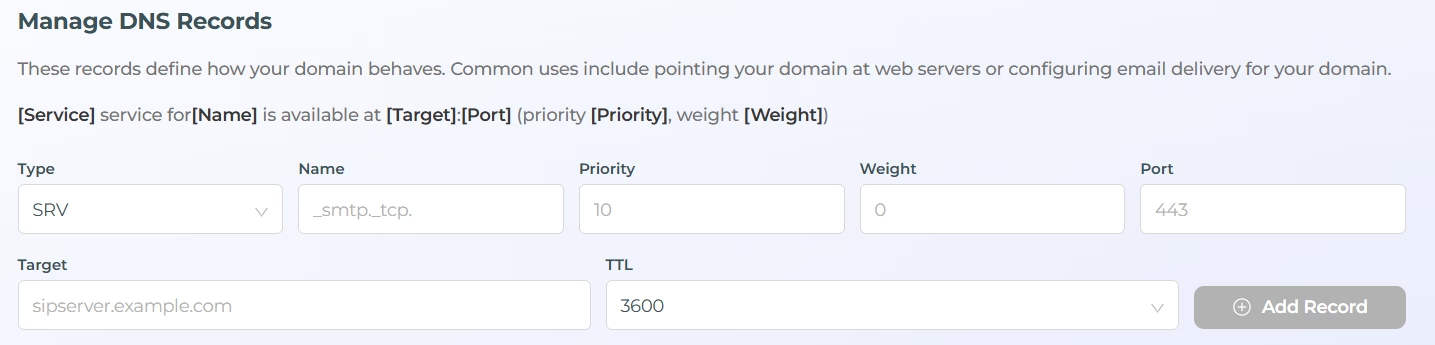
An SRV record defines service configuration information.
| Name | Priority | Weight | Port | Target | TTL |
|---|---|---|---|---|---|
| _smtp._tcp | 10 | 0 | 443 | sipserver.example.com | 3600 |
Step 3: Wait for DNS Propagation #
After adding or updating DNS records:
- changes may take some time to propagate globally
- some services may start working immediately
- other DNS updates may take several minutes or hours
Propagation time depends on:
- DNS caching
- your internet provider
- the record type
Important Notes #
- DNS records only work when the domain uses WebOps nameservers
- Incorrect DNS records may affect your website or email services
- Some DNS changes may require propagation time before becoming active
- TXT and MX records are commonly used for email services
- SRV records are usually used for advanced service configurations