
After purchasing a domain in WebOps, you can connect it to one of your websites once the domain becomes Active.
This guide explains all available ways to link a purchased domain to your website.
Before You Start #
Before connecting a domain, make sure:
- the DNS Status is Active
- the domain is using WebOps nameservers
Domains with the following statuses cannot be linked:
- Propagating
- Pending
- Error
- External
Only Active domains can be connected to websites.
Method 1: Connect from Domains Portfolio #
Step 1: Open the Domains Portfolio Page
Log in to your WebOps dashboard:
app.thewebops.com
From the left sidebar, click Domains.
You will be redirected to the Domains Portfolio page.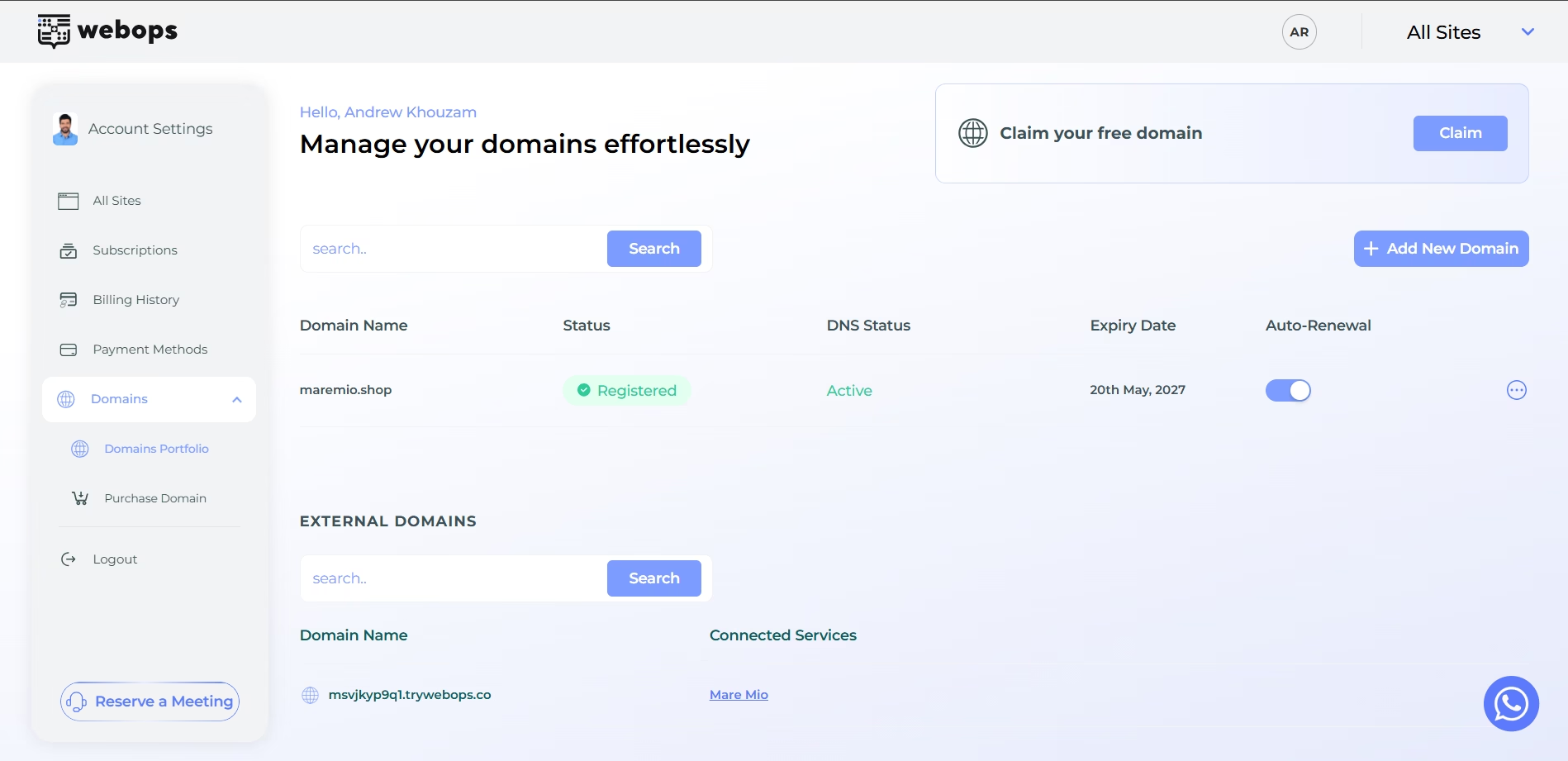
Step 2: Open the Link to Website Modal
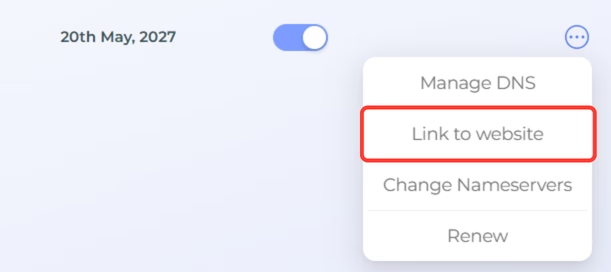
Click the three dots menu next to the domain you want to connect.
Then click Link to Website.
A linking modal will appear.
Step 3: Select the Website
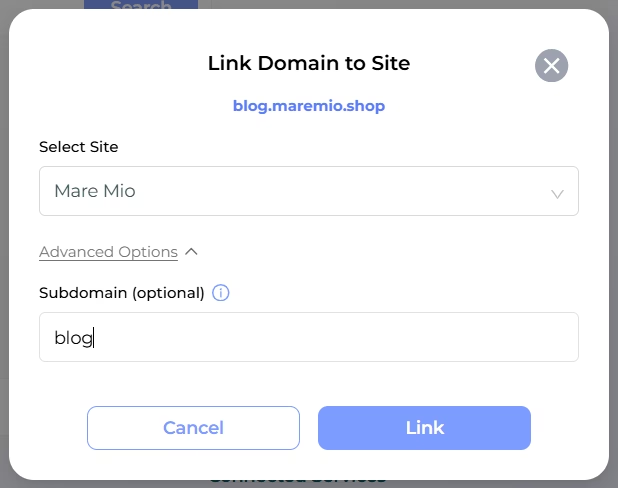
Inside the modal:
- choose the website you want to connect the domain to
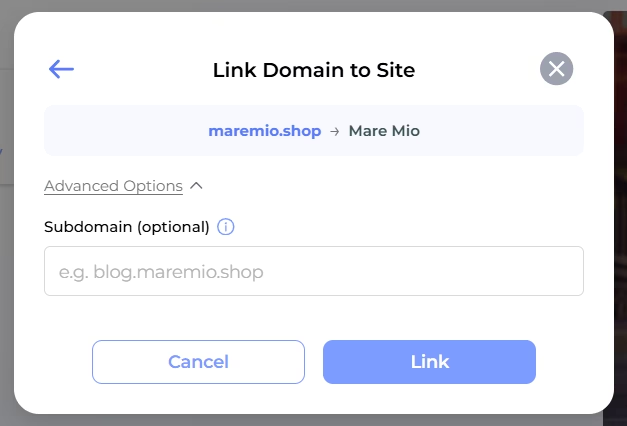
- optionally open Advanced Options and enter a subdomain
Then click Link.
Method 2: Connect from the Website Home Page #
Step 1: Open Your Website Dashboard
Open the website you want to connect the domain to.
Then use one of the following options:
- click Connect domain from the status panel at the top of the page
- click Connect from the Connect your domain step inside the setup checklist
Both options open the domain connection flow.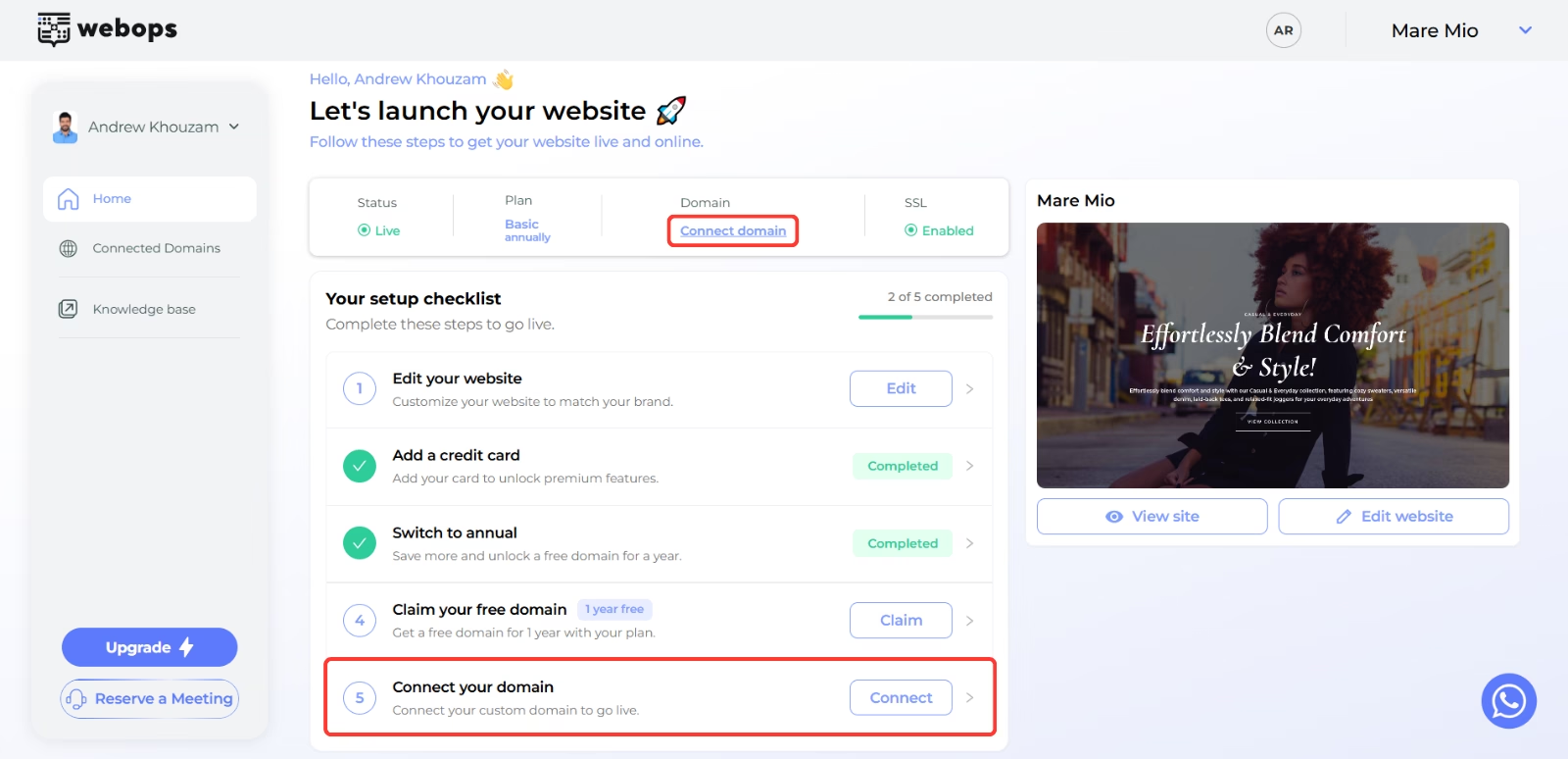
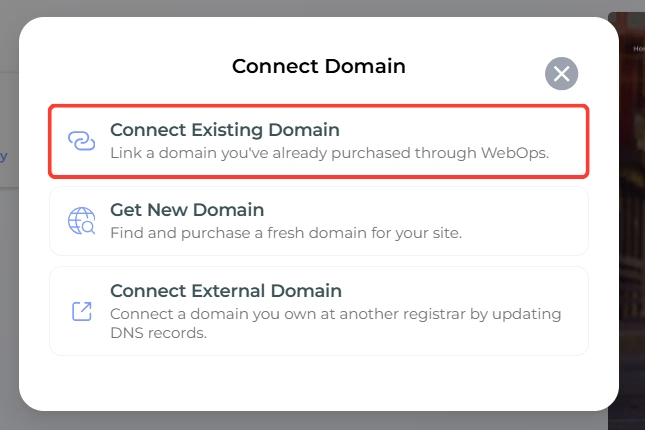
Step 2: Choose Connect Existing Domain
Inside the Connect Domain modal, select:
Connect Existing Domain
Step 3: Select the Purchased Domain
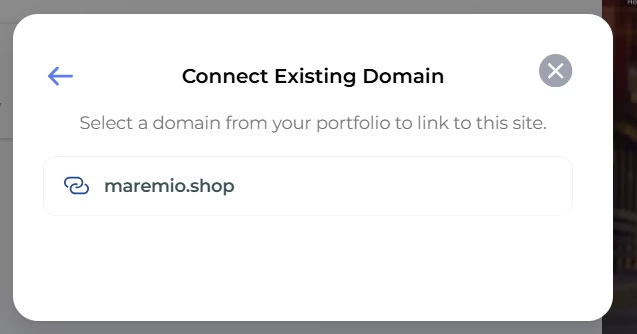
WebOps will display:
- purchased domains only
- domains with DNS Status = Active only
Select the domain you want to connect.
Then click Link.
Method 3: Connect from the Connected Domains Page #
Step 1: Open the Connected Domains Page
Inside your website dashboard:
- open Connected Domains from the sidebar
You will see the Connected Domains page.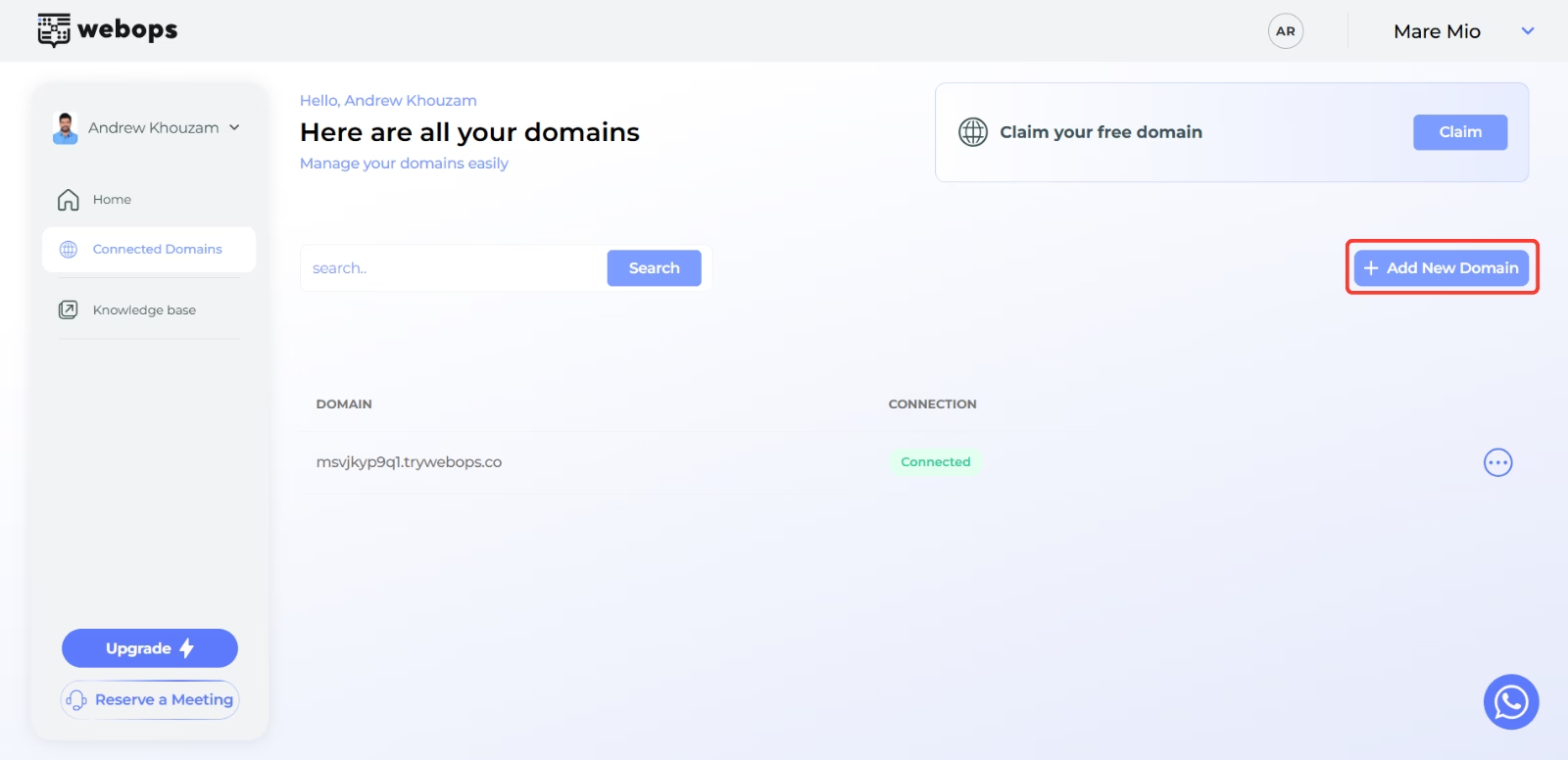
Step 2: Click Add New Domain
Click:
Add New Domain
A modal will appear with multiple connection options.
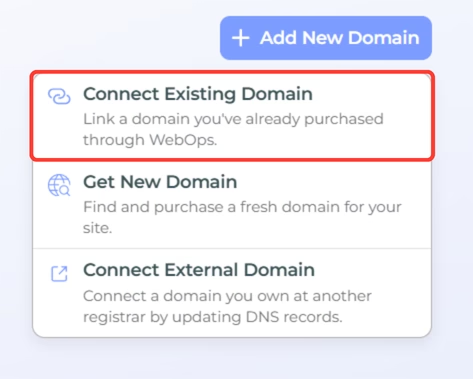
Step 3: Choose Connect Existing Domain
Select:
Connect Existing Domain
Then select the purchased domain you want to connect.
What Happens After Connecting? #
After the domain is connected successfully:
- it will appear in the Connected Domains page
- SSL will activate automatically
- your website will start using the connected domain
- the newly connected domain will automatically become the Primary Domain
SSL activation may take a few minutes depending on DNS propagation.
Important Notes #
- A domain cannot be linked if the DNS Status is not Active
- Domains using external nameservers cannot be linked
- Already linked domains or subdomains cannot be linked again
- SSL activation starts automatically after linking