
With WebOps, you can search for and purchase domains directly from your dashboard without using a third-party registrar.
This guide walks you through the domain search and purchase process step by step.
Step 1: Open the Purchase Domain Page #
Log in to your WebOps dashboard: app.thewebops.com
From the left sidebar, click Domains.
Then choose one of the following options:
- Click Purchase Domain from the expanded sidebar menu
- Or click Add New Domain from the Domains Portfolio page
Both options will open the Purchase Domain page.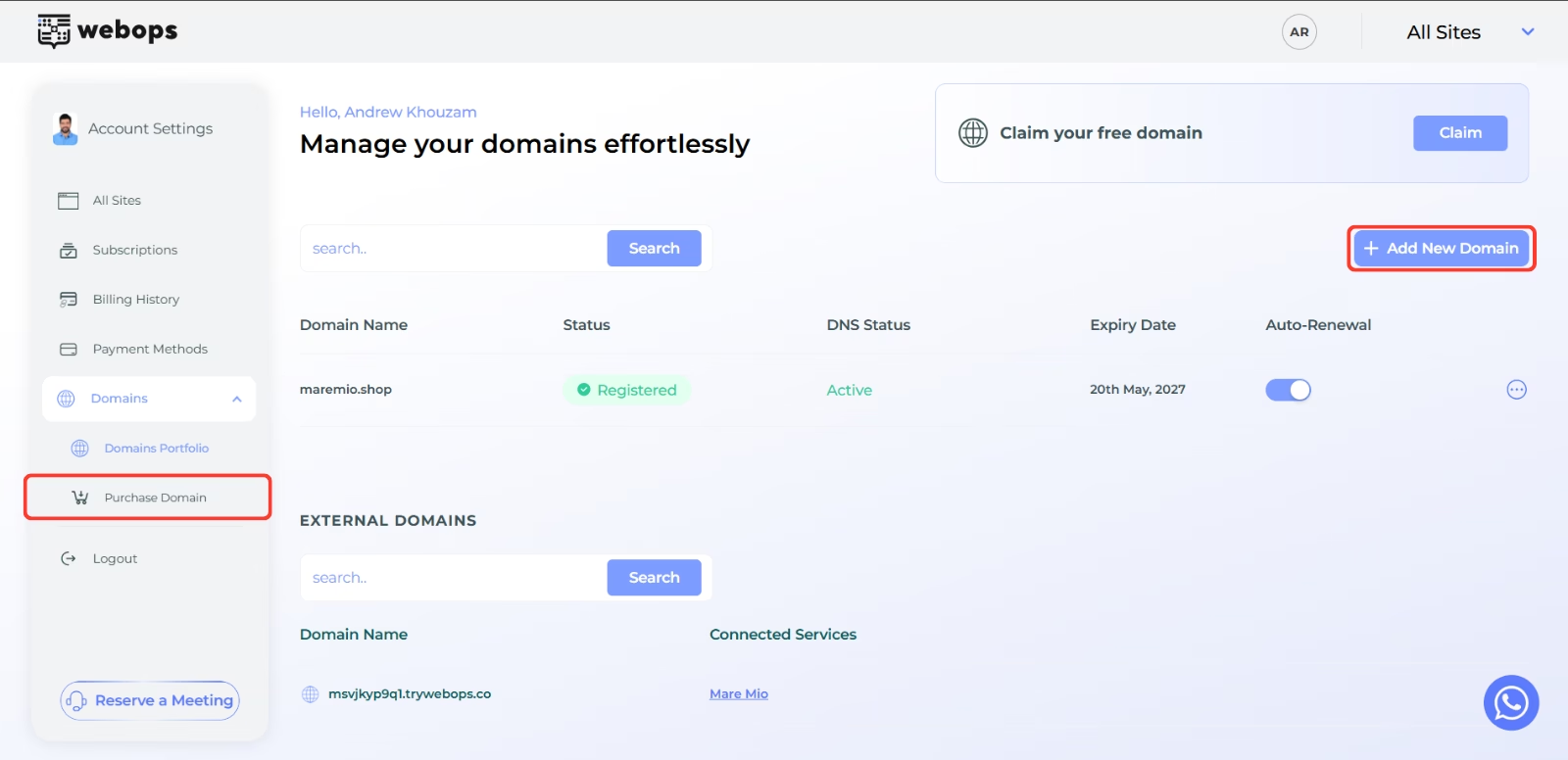
Step 2: Search for a Domain #
On the Purchase Domain page, enter the domain name you want to register (example: yourbrand.com).
Click Search.
WebOps will instantly check whether the domain is available.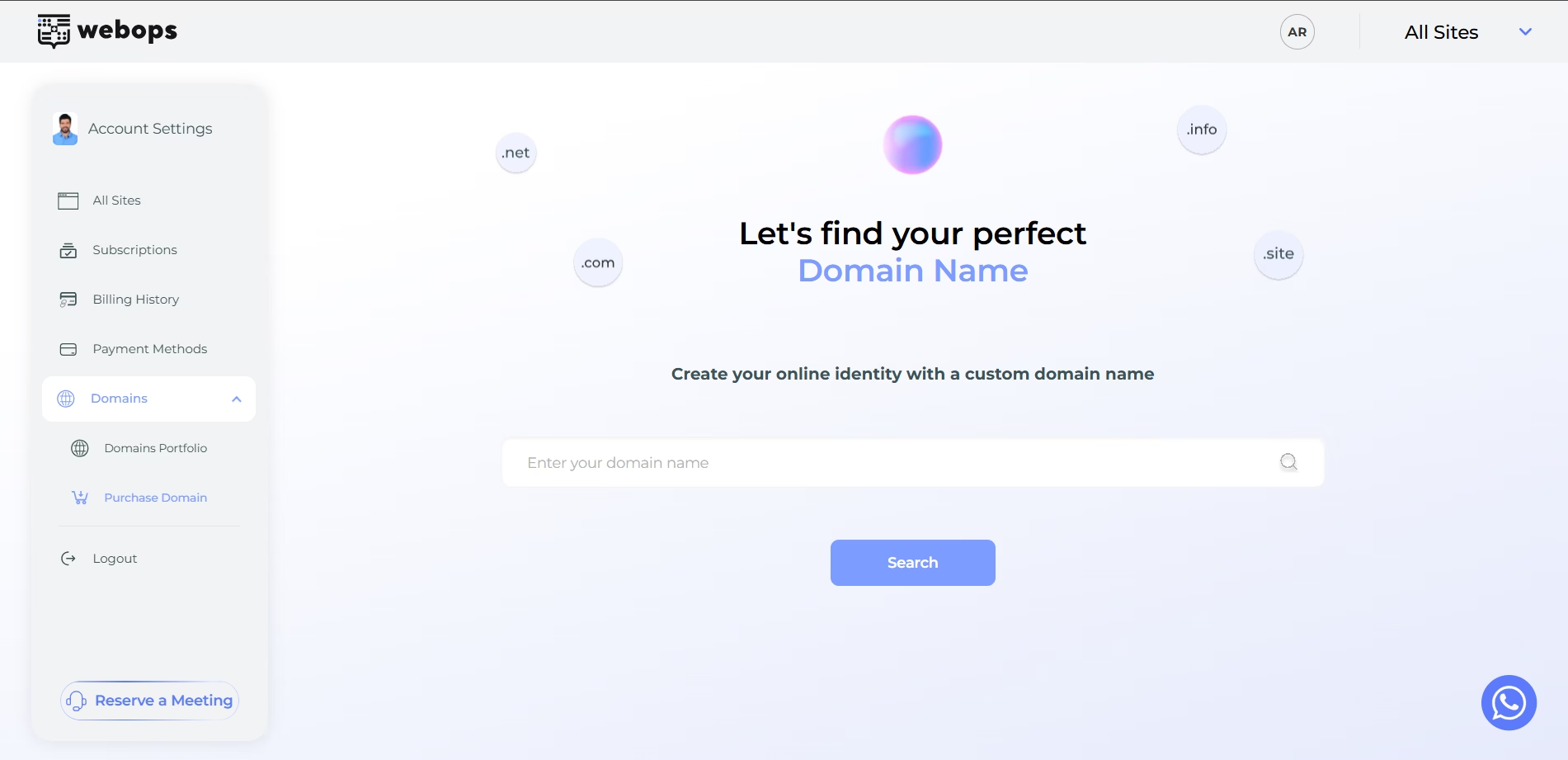
Step 3: Review Domain Availability #
After searching, WebOps will display whether the domain is:
- available for registration
- already taken
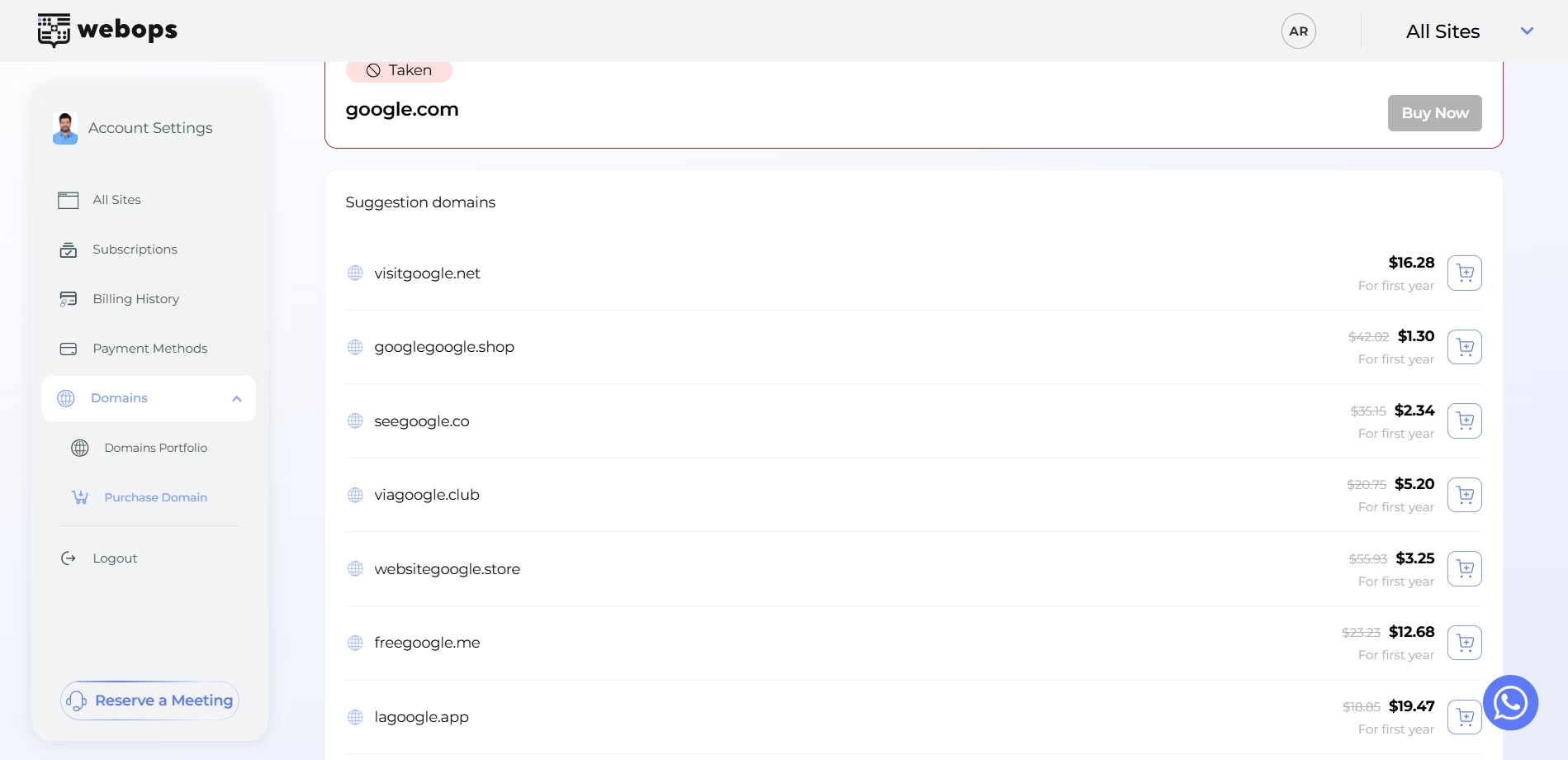
If the domain is unavailable, WebOps will display alternative domain suggestions.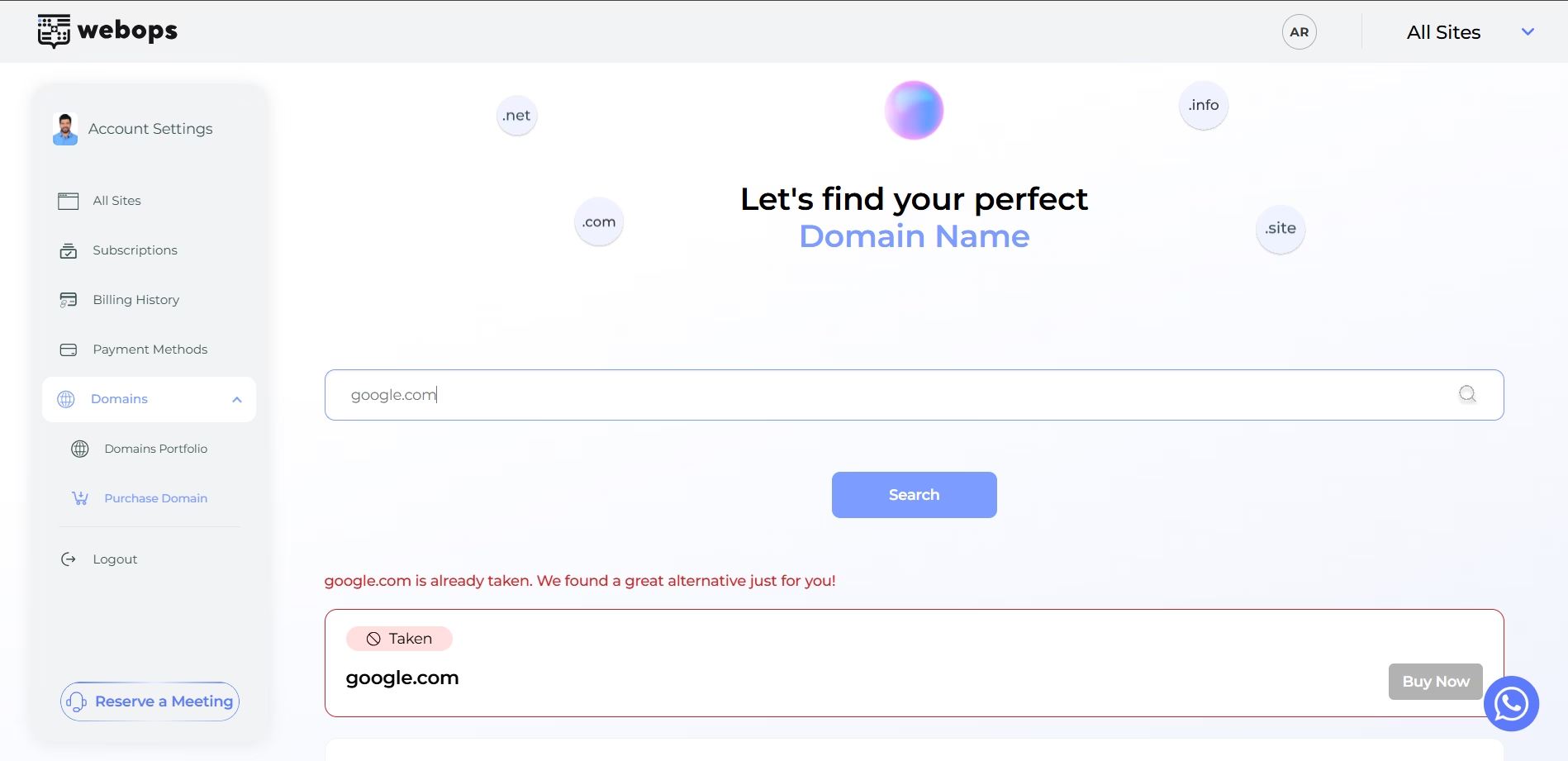
Step 4: Purchase the Domain #
If the domain is available, click Buy Now.
A purchase confirmation modal will appear.
You can:
- review pricing
- choose the registration period
- complete payment
After payment is completed successfully, the domain will be registered automatically.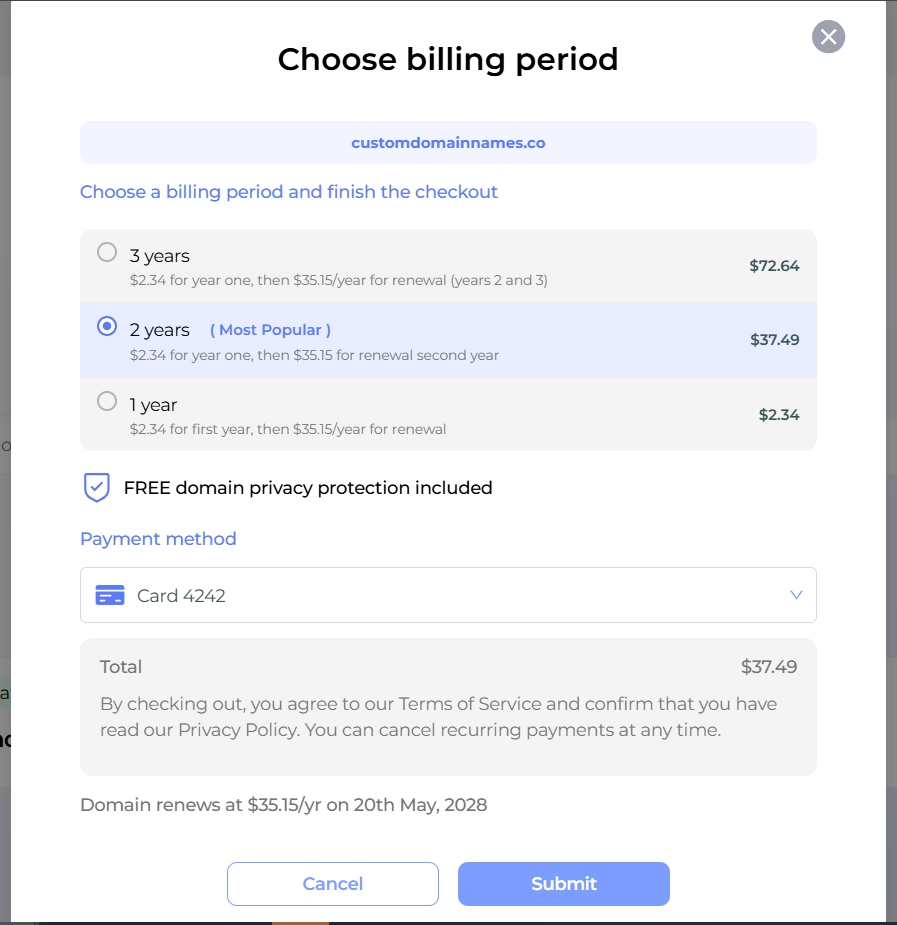
Step 5: Wait for Domain Activation #
After purchasing the domain:
- it will appear in your Domains Portfolio
- the domain status will begin updating automatically
Initially, the domain may show:
- Registered
- Propagating
Once setup finishes successfully, the DNS Status will become:
- Active
When the domain becomes Active, it is ready to:
- connect to websites
- manage DNS records
You may also receive an email notification once activation is completed.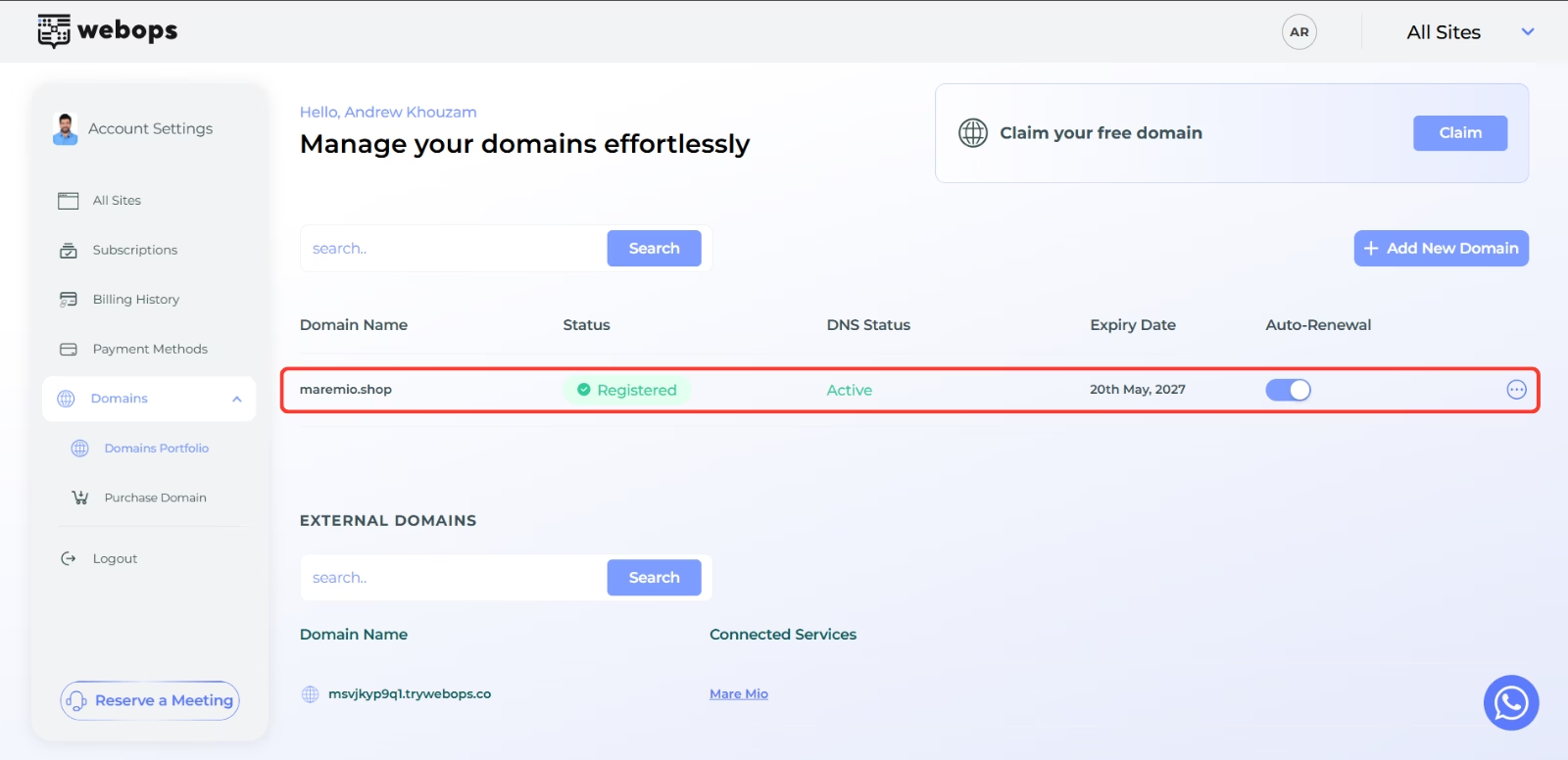
Understanding Domain Statuses #
Your domain may display different statuses during setup.
| Status | Meaning |
|---|---|
| Registered | The domain registration was completed successfully |
| Propagating | DNS setup is still processing |
| Active | The domain is fully active and ready to use |
| External | The domain is using external nameservers |
| Error | The setup process failed or requires attention |
Some DNS changes may take time to propagate globally.
Free Domain Claims (Annual Plans Only) #
If your website is eligible for a free domain:
- you may see a Claim button instead of Buy Now
- the first year will be free
- renewal pricing will apply starting from the second year
After clicking Claim, a confirmation modal will appear before the domain is registered.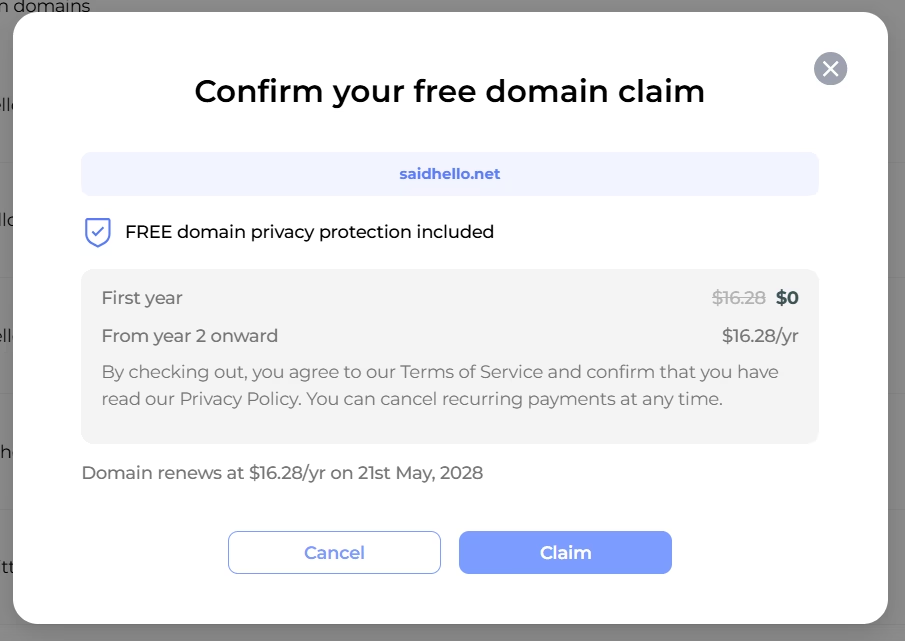
What Happens After Purchasing? #
Purchasing a domain does not automatically connect it to a website.
After the DNS Status becomes Active, you can connect the domain to one of your websites.
Continue with:
How to Connect a Purchased Domain to Your Website